
Configuring MFA Session Length in ExpressionEngine 7.6
Multi-Factor Authentication (MFA) has been available in ExpressionEngine since version 6.2 (originally introduced in ExpressionEngine Pro in January 2022) and has been built directly into ExpressionEngine core since version 7.0 (August 2022). It is one of the highest-impact steps you can take to protect Control Panel editors, administrators, and front-end member accounts.
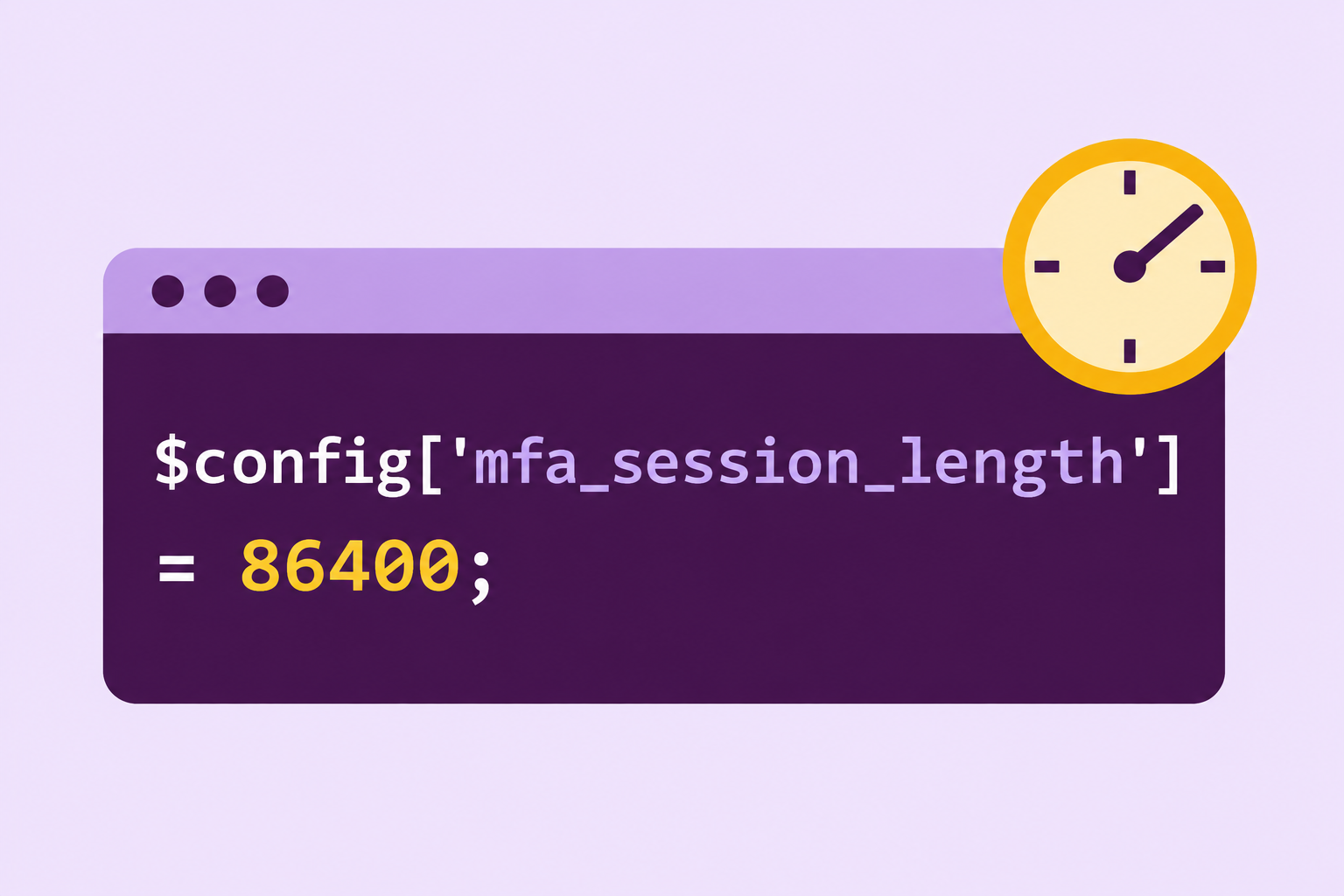
In ExpressionEngine 7.6, the new $config['mfa_session_length'] configuration override lets you define how long a verified MFA check is remembered between login sessions, measured in seconds. It is opt-in by default, giving you full control over how frequently your team is prompted for a verification code.
Quick Refresher: Turning On MFA
If your site already uses Multi-Factor Authentication, you can jump straight to Prerequisites. If you are enabling MFA for the first time, here is the three-part setup inside the Control Panel:
- Enable MFA globally: Go to Settings → Members and make sure Enable Multi-Factor Authentication? is turned on.
- Require MFA for specific roles (optional): Go to Members → Roles, open a role, and enable Require Multi-Factor Authentication if you want all members in that role to enroll on their next login.
- Enroll your account: Open Members → Profile → Multi-Factor Authentication (or press
⌘J/Ctrl+Jto open the Jump Menu and typeMFA), toggle MFA on, scan the QR code with an authenticator app (such as 1Password, Authy, or Google Authenticator), save your backup code in a secure password manager, and confirm your 6-digit verification code.
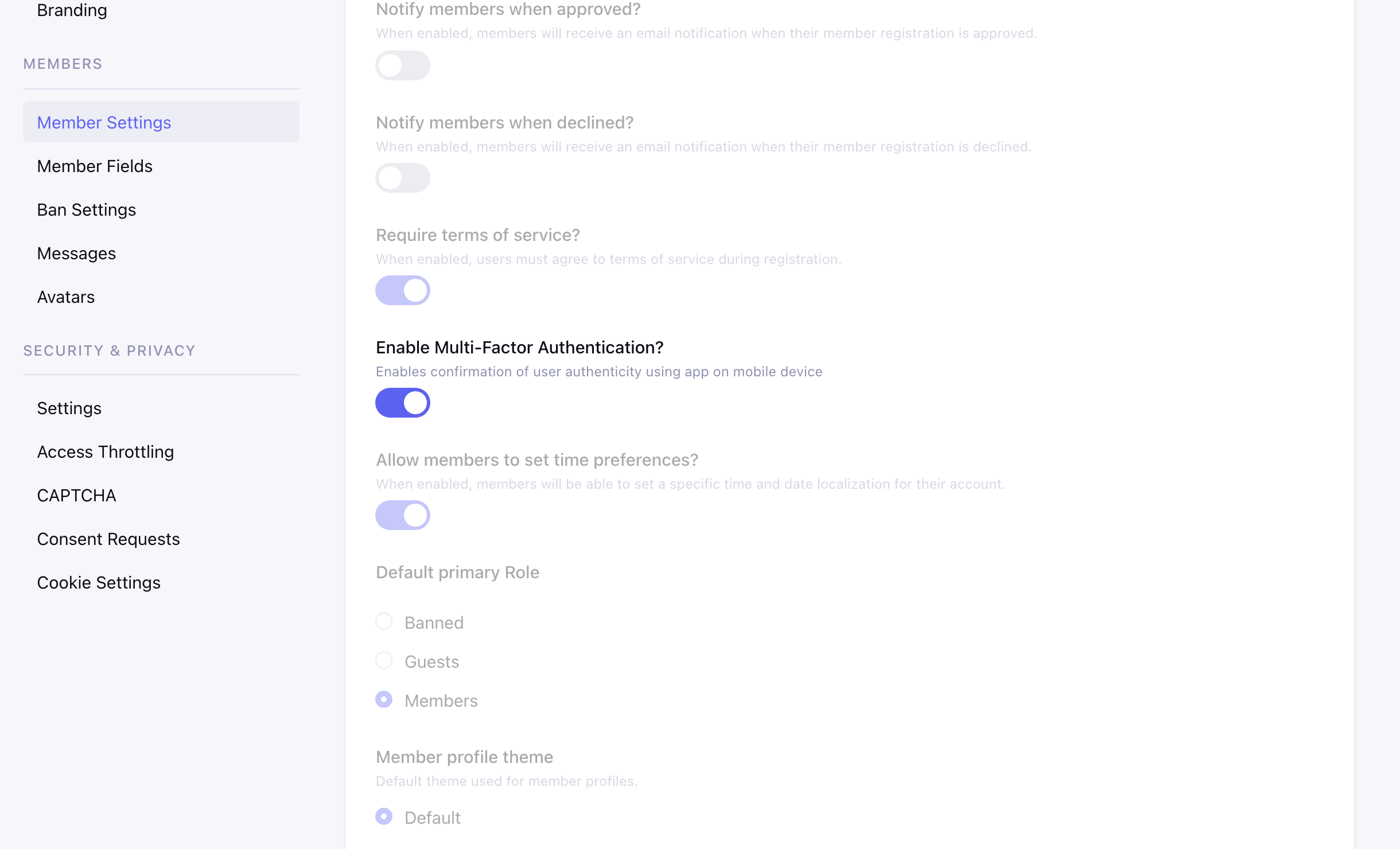 Enable Multi-Factor Authentication globally under Settings → Members.
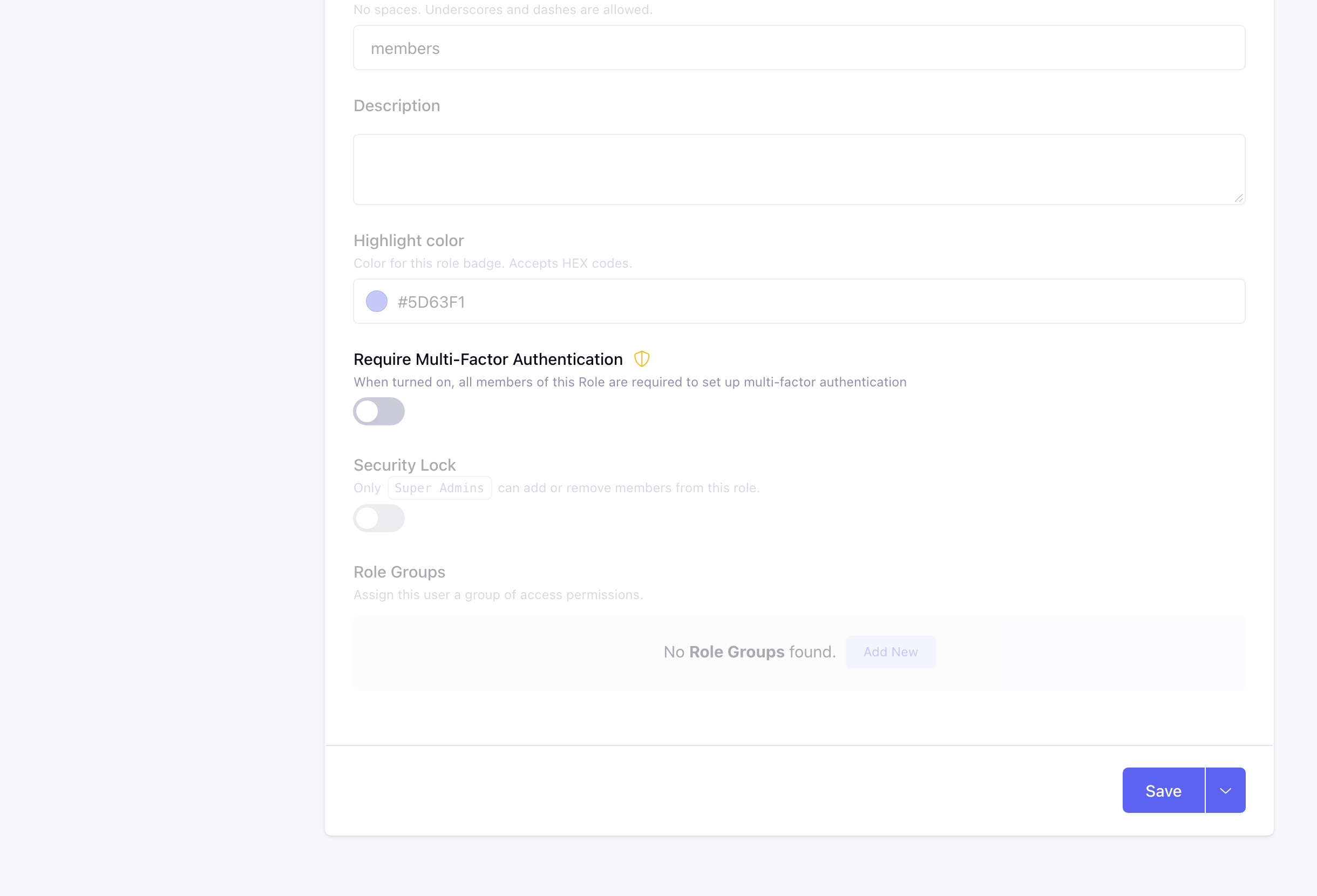 Enforce MFA for specific teams or access levels under Members → Roles → [Role].
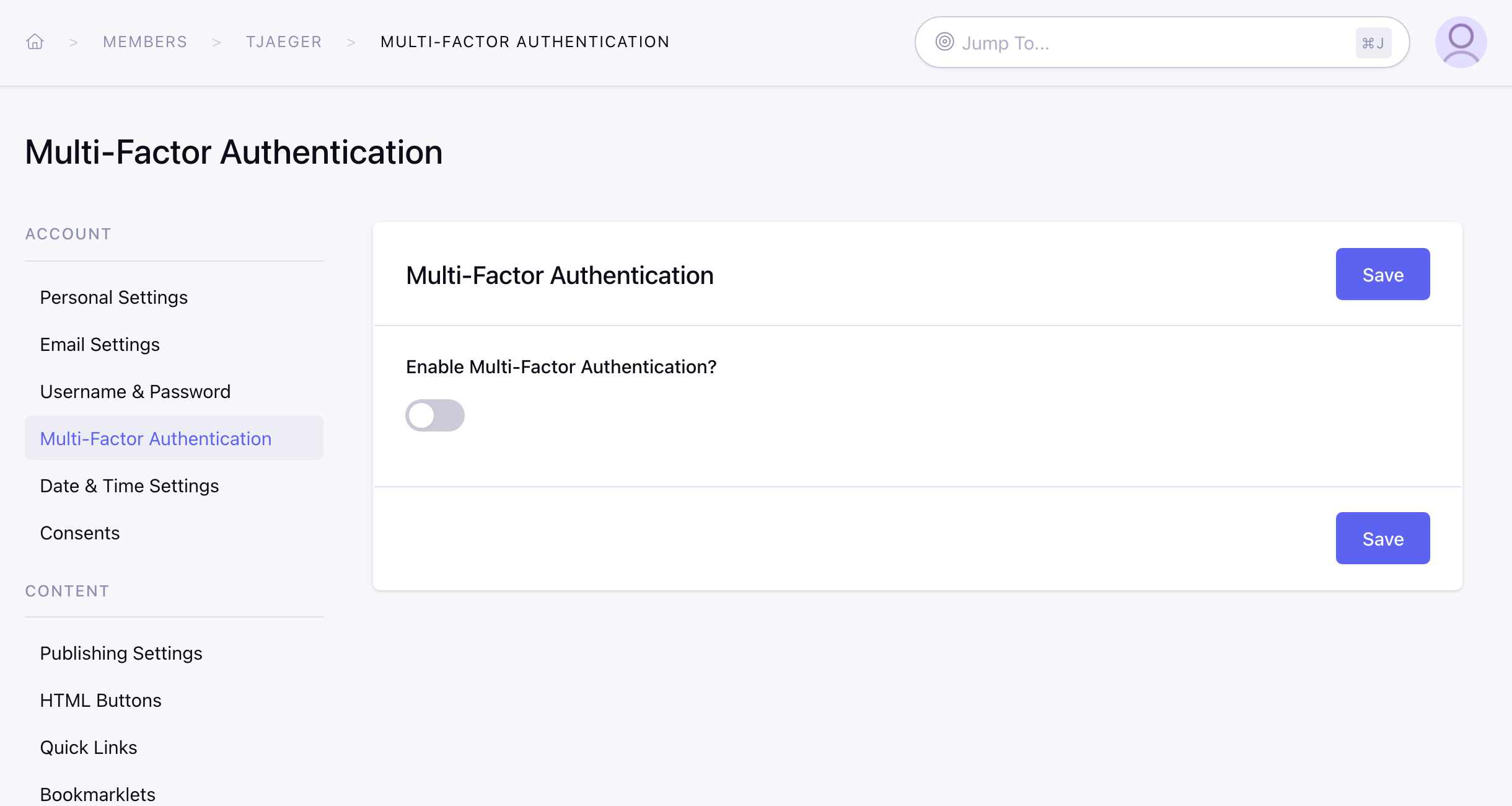 Individual members manage their own MFA enrollment under Members → Profile → Multi-Factor Authentication.
Prefer a walkthrough video? Watch Tuesday Tips with Tom: Multi-Factor Authentication in ExpressionEngine on YouTube for a quick step-by-step tour of enabling MFA via the Jump Menu, requiring MFA by Member Role, scanning the QR code, storing your backup code, and logging in with a verification code.
Prerequisites
Before configuring mfa_session_length, confirm that your site meets three requirements:
- ExpressionEngine 7.6.0 or newer: The
mfa_session_lengthoverride and its accompanying MFA session handling were introduced in ExpressionEngine 7.6.0. - MFA is enabled: Under Settings → Members, Enable Multi-Factor Authentication? must be turned on (or
$config['enable_mfa'] = 'y'/ unset, since it defaults to enabled). - Cookie-based sessions are enabled: Because MFA approval relies on an HTTP-only cookie, your session type must use cookies. Navigate to Settings → Security & Privacy and confirm that CP session type (
cp_session_type) and/or Website Session type (website_session_type) is set to Cookies only (c) or Cookies and session ID (cs). If a session type is set to Session ID only (s),mfa_session_lengthis ignored for that area.
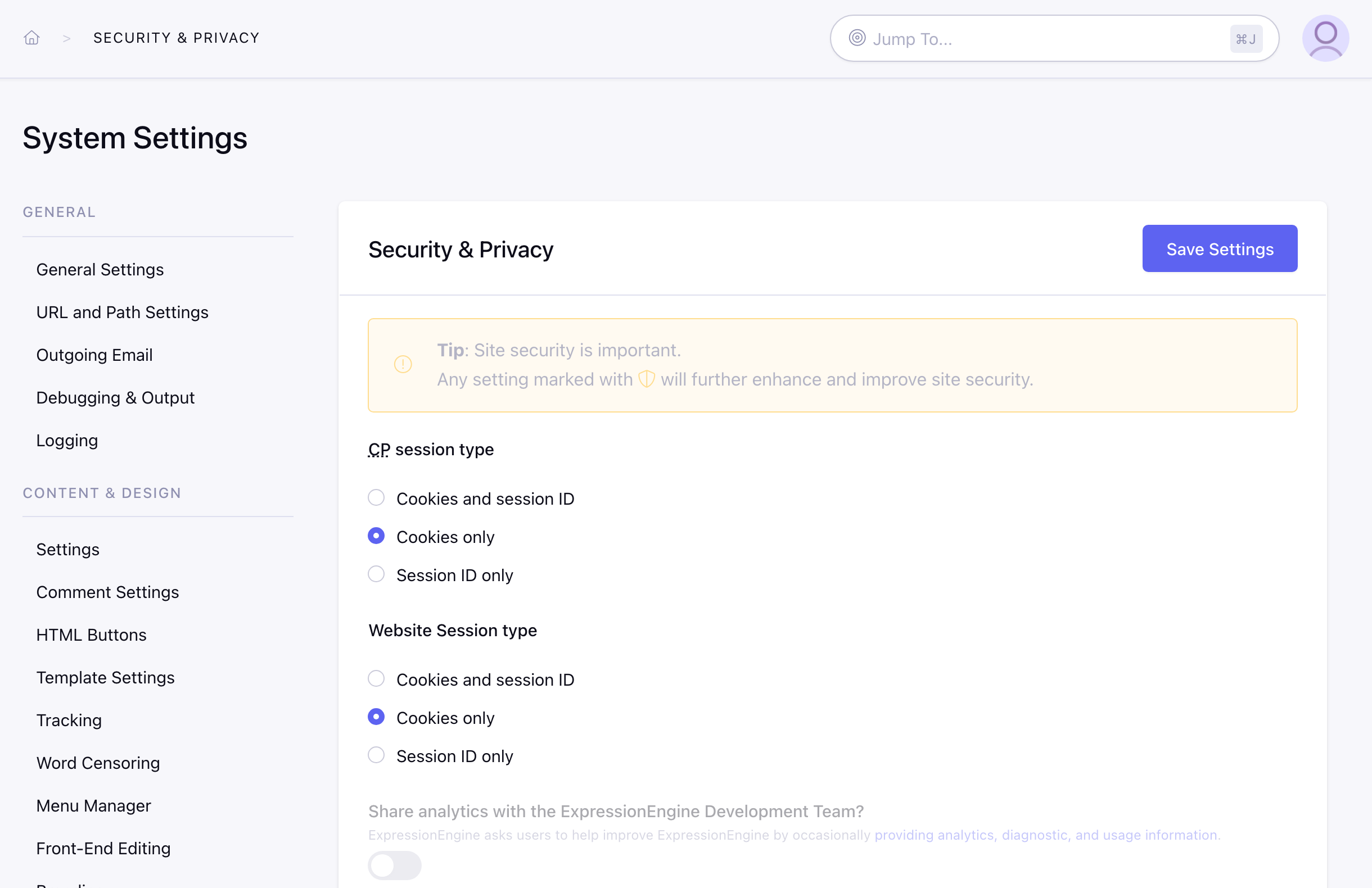 Make sure CP session type and Website Session type use Cookies only or Cookies and session ID.
mfa_session_length is disabled when set to Session ID only.
Configuring $config['mfa_session_length']
By default, mfa_session_length is unset (equivalent to 0), which disables remembering MFA between login sessions and preserves ExpressionEngine’s existing behavior. To enable MFA session reuse, set mfa_session_length to a positive integer representing the desired duration in seconds.
Set the configuration value in your config.php file.
Add it to system/user/config/config.php
Open system/user/config/config.php and add $config['mfa_session_length']:
// Remember MFA verification for 7 days (in seconds)
$config['mfa_session_length'] = 604800;
To disable MFA session reuse at any time, remove the line or set it to 0:
// Disable remembering MFA verification between login sessions (default)
$config['mfa_session_length'] = 0;
Common Duration Reference
| Duration | Value (Seconds) | Typical Use Case |
|---|---|---|
| Disabled (default) | 0 or unset |
Strict compliance environments, shared devices, or prompting on every login |
| 8 hours | 28800 |
Single workday before requiring a fresh code |
| 24 hours (1 day) | 86400 |
Daily MFA verification for active editors |
| 7 days (1 week) | 604800 |
Balanced default for trusted agency and editorial teams |
| 14 days (2 weeks) | 1209600 |
Low-friction setup for trusted internal teams |
| 30 days | 2592000 |
Extended convenience window on managed personal devices |
Verifying Your Configuration in Cookie Settings
ExpressionEngine 7.6 registers the MFA Session cookie (exp_mfa_session) in the built-in Cookie Registry as a Necessary cookie, making it easy to verify your active setting right inside the Control Panel.
- Go to Settings → Cookie Settings (
settings/pro/cookies). - Under Necessary Cookies, locate MFA Session (
exp_mfa_session). The Lifetime column displays the active$config['mfa_session_length']value in seconds (for example,86400for 24 hours).
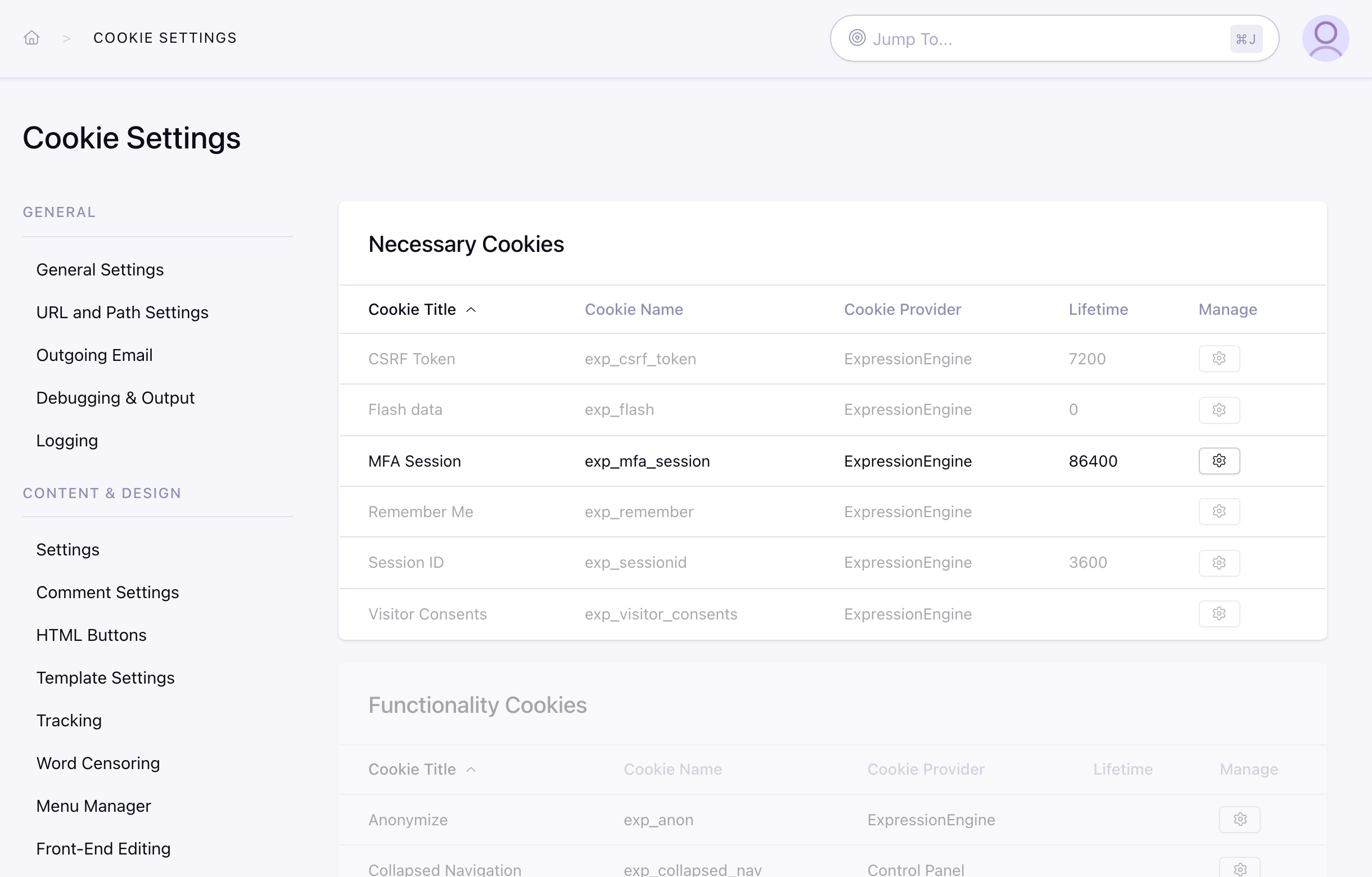 In Settings → Cookie Settings,
MFA Session (exp_mfa_session) appears under Necessary Cookies with its current mfa_session_length value.
- Click the Manage (gear) icon on the MFA Session row to inspect its details.
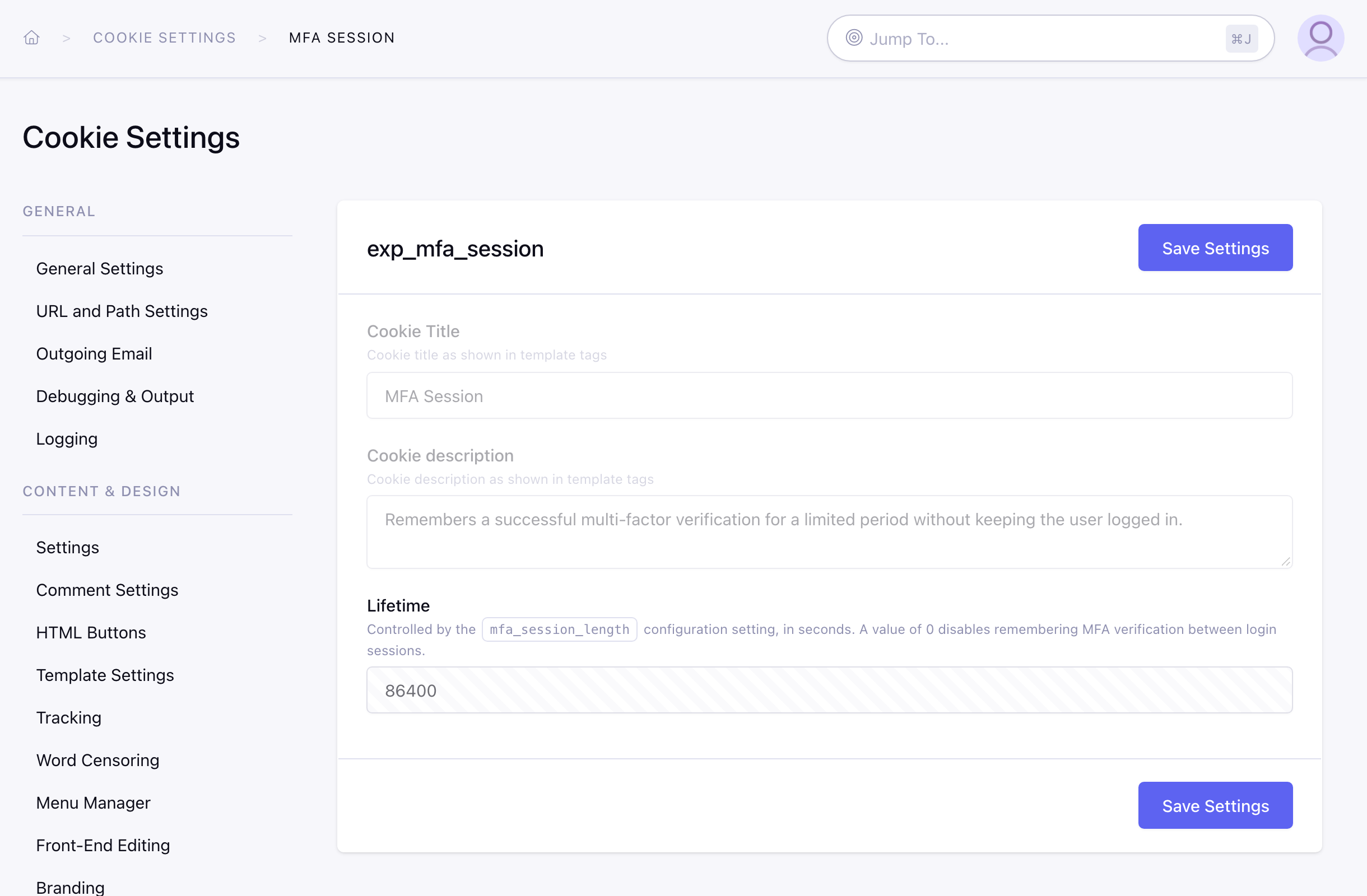 The Lifetime field for
exp_mfa_session is intentionally read-only in the Control Panel and mirrors $config['mfa_session_length'] from config.php.
You can still edit the Cookie Title and Cookie description here if your site outputs cookie disclosures via template tags, while the Lifetime field remains locked to $config['mfa_session_length'] so security policy stays version-controlled in config.php.
How mfa_session_length Works & Built-in Security Safeguards
ExpressionEngine 7.6’s MFA session implementation is designed to cut down on repetitive prompts without weakening account authentication. Understanding the exact boundaries makes it easier to pick the right duration for your site.
Decoupled from “Remember Me”
$config['mfa_session_length'] only remembers that a browser passed an MFA check. It never keeps a user logged in on its own:
- With “Keep me logged in” checked: When a user’s regular login session expires and ExpressionEngine restores the session via Remember Me, the user skips the 6-digit MFA prompt as long as the MFA approval window is still valid.
- Without “Keep me logged in” checked: The user still has to enter their username and password on their next login, then skips the 6-digit MFA prompt while inside the configured window.
Fixed Window Checked Only at Authentication Boundaries
The approval window starts from the exact timestamp when the user verified their 6-digit code (verified_at). It is a fixed window, not a sliding one:
- Refreshing or restoring a Remember Me session does not extend the MFA expiration time.
- If the MFA window expires while someone is actively editing an entry or template, they will not be kicked out mid-work. ExpressionEngine only checks the MFA approval window at authentication boundaries: new logins, remembered-session restores, and idle unlock modals.
Site-Isolated, Hardened Cookies Across CP and Front-End
MFA session reuse works consistently for both Control Panel and front-end logins. Under the hood, ExpressionEngine stores a cryptographically random approval token in a site-isolated, host-only cookie (exp_mfa_session_{site_id} governed by the mfa_session cookie policy) with strict transport flags:
HttpOnlyis always enabled so client-side JavaScript cannot read the token.SameSiteis set toLax(orStrictif your site configuresStrict).Secureis automatically enforced whenever the request is served over HTTPS.
Automatic Revocation & 7.6 Security Hardening
ExpressionEngine immediately invalidates remembered MFA approvals whenever a user logs out or account security credentials change:
- Explicit logout: Logging out immediately revokes the browser’s MFA approval and clears the cookie, even if time remained in the window.
- Account security changes: Changing a member’s password, disabling or re-enabling MFA, or changing backup codes revokes all remembered MFA approvals for that member across every browser and site.
- Stronger self-disable protection (new in 7.6): As a companion hardening change in ExpressionEngine 7.6, members disabling their own MFA in the Control Panel or on the front-end must now enter a current 6-digit verification code in addition to confirming their password.
Recommended Values & Best Practices
There is no single right number for every site. Choose a duration that fits how your team works and the sensitivity of the content they manage:
- Strict compliance, financial/healthcare portals, or shared workstations (
0/ unset): Keep MFA session reuse disabled so every new login requires a fresh 6-digit code. - Workday-scoped access (
28800to86400): Ideal for organizations that want editors to verify once per workday or once every 24 hours without getting prompted after short breaks. - Trusted editorial and agency teams (
604800to1209600): A 7-day or 14-day window gives teams who regularly log in from managed personal laptops a smooth workflow while still requiring periodic MFA verification.
A few practical habits pair well with mfa_session_length:
- Always serve logins over HTTPS in staging and production so the
Securecookie attribute is enforced automatically. - Log out on shared or public computers: Explicit logout immediately revokes the MFA approval cookie on that browser.
- Store MFA backup codes in a password manager when onboarding editors so losing a phone never turns into an emergency lockout.
Conclusion & Helpful Links
$config['mfa_session_length'] brings a much-requested quality-of-life improvement to ExpressionEngine 7.6: you can keep MFA required for your team without making every session timeout feel like a speed bump, while retaining fixed windows, automatic revocation on logout or credential changes, and strict cookie protections.
For further reading and setup resources:
- ExpressionEngine Multi-Factor Authentication Documentation
- System Configuration Overrides Documentation
- Tuesday Tips with Tom: Multi-Factor Authentication in ExpressionEngine (YouTube)

Comments 0
Be the first to comment!